

Google Search Console now lets you filter by multiple countries
Your Partner in Search Engine Success.
Google Search Console now lets you select more than one country in the Performance report filter. You tick the countries you want, and Search Console shows their clicks, impressions, CTR (click-through rate) and average position as one combined total. Google Search Central announced the change on LinkedIn on 6 October 2026. If you handle SEO for a site that serves several markets, such as the six GCC countries, this saves you a lot of spreadsheet work.
Here is what changed, how to use it, and where it still falls short.
What Google changed
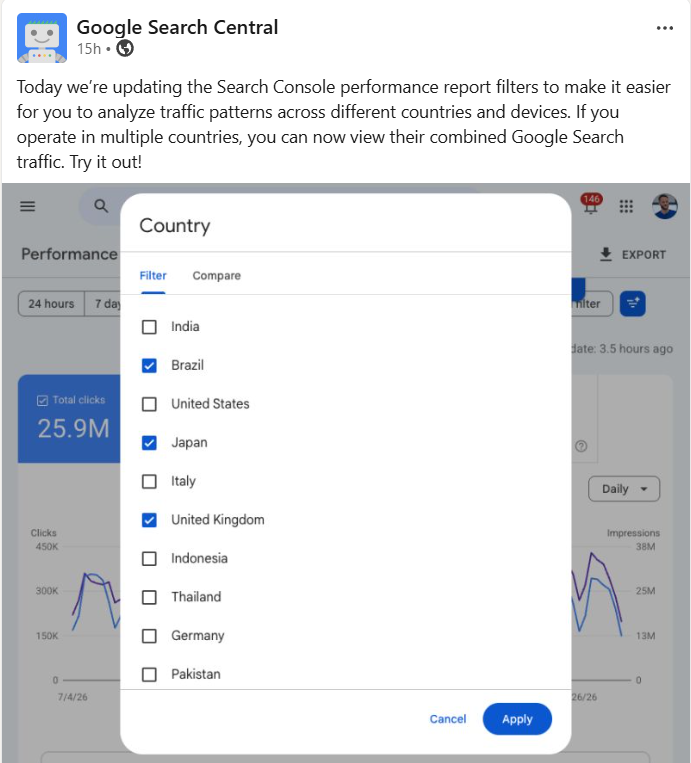
In its LinkedIn post, Google said the update makes it easier to study traffic patterns across countries and devices. It added that sites that work in several countries can now see their combined Google Search traffic.
The country filter now has two tabs: Filter and Compare. On the Filter tab, each country has a checkbox. Tick as many as you need, and the report adds their numbers together.
The post also mentions devices, but Google did not say what changed in the Device filter. The screenshot it shared only shows countries. Search Engine Journal noticed that Google's help page still described the old rules on launch day. So treat the device part as unclear for now, and check your own account.
How it worked before
Until now, the country filter took one country at a time. Google's help page says that if you want data for more than one country, you must use a comparison, and a comparison is limited to two items.
That left SEO teams with two poor choices:
Compare two countries side by side, then repeat for every pair.
Export each country on its own and add the numbers in a spreadsheet.
For an agency reporting on the Gulf region, the second option meant six exports per client, every month. Query and page filters could already match many values at once, for example with regex (regular expressions, a way to match text patterns). The country filter has now caught up.
How to filter by multiple countries
Open Search Console and choose your property.
Go to Performance, then Search results.
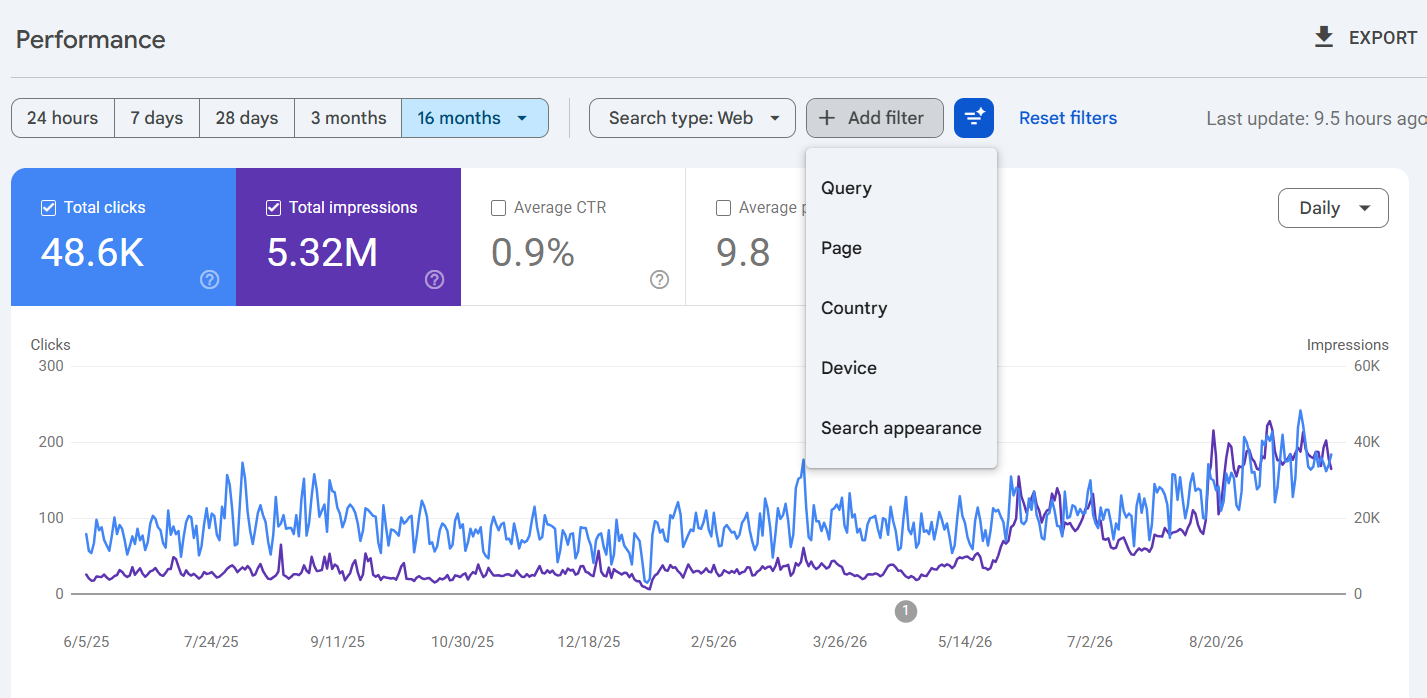
Open the filter options at the top of the report and choose Country. If a country filter is already set, click it to edit.
Stay on the Filter tab and tick each country you want.
Click Update. The chart and all the tables below it now show the combined data.
If you don't see checkboxes yet, give it a few days. Google said the update was going out that day, but it did not say if every property would get it at the same time.
Four practical ways to use it
Report on a whole region in one view
Tick the UAE, Saudi Arabia, Qatar, Kuwait, Oman and Bahrain, and you have your GCC total in one click. Brands that sell in both India and the Gulf can build two groups and track each one's growth month by month.
Remember that Country in Search Console means where the searcher is. It does not mean which version of your site they landed on. So a GCC group shows demand from the Gulf, wherever on your site it ends up.
Check if regional pages get the right visitors
Combine a country group with a page filter. Say your UAE pages sit in a /ae/ folder. Filter for pages that contain /ae/, then select Saudi Arabia, Qatar, Kuwait, Oman and Bahrain. If a lot of non-UAE searchers land on UAE pages, you may need pages for those markets, or your hreflang may need fixing. Hreflang is a tag that tells Google which language or country version of a page to show to which users.
Find pages competing with each other
Cannibalisation happens when two of your own pages compete for the same search. Select a group of markets that share a language, such as the Arabic-speaking Gulf countries. Open the Queries tab, click an important query, then switch to the Pages tab. If several country versions of the same page show up for that query, Google may be unsure which one to rank.
Measure a campaign that targets several countries
If you ran a content push or a launch across the Gulf, select those countries and compare the date range before the campaign with the date range after it. Date comparison works alongside the country filter, so you get one before-and-after view for the whole region.
Limits to keep in mind
Compare still allows only two items
You can add many countries into one total, but you can't line up three or more countries side by side in Compare. For a country-by-country breakdown, open the Countries tab instead. It already lists every country's numbers in one table.
Average position becomes a mix
When you combine countries, the position shown blends all those markets together. A strong position in a big market can hide a weak one in a smaller market. Check important queries country by country before you report a ranking win or loss.
The usual data limits still apply
Tables in the Search Console interface show up to 1,000 rows, and the Performance report keeps 16 months of data. For bigger sites, the API or a connector to a reporting tool is still the better route.
The device change is unclear
Until Google updates its help page, don't assume the Device filter works the same way as the new country filter.
What to do next
Pick one client that serves more than one country. Build a region group in the Performance report, note the totals for the last three months, and save them as your starting point. Next month, you can report regional growth without a single export.