
How to Track Keyword Rankings Using Google Apps Script: A Step-by-Step Guide
Your Partner in Search Engine Success.
Tracking keyword rankings is an essential part of SEO. It helps you understand how your website performs in Google Search, identify ranking improvements and declines, and measure the impact of your SEO activities.
Several paid tools provide keyword rank tracking, but they may not always suit your budget or reporting requirements. An alternative is to build a basic automated rank tracker using Google Sheets, Google Apps Script, and a search results API such as Serper.
In this guide, you will learn how to build a keyword rank tracker that records rankings, maintains historical data, runs daily, and displays results in an SEO dashboard.
What Is Google Apps Script?
Google Apps Script is a cloud-based scripting platform that allows you to automate tasks across Google products, including Google Sheets, Google Drive, and Gmail.
For SEO professionals, Google Apps Script can automate repetitive activities such as data collection, URL validation, reporting, and keyword rank tracking.
By connecting Google Apps Script to a search results API, you can retrieve search results for selected keywords and store the ranking data directly in Google Sheets.
What You Will Build
By following this tutorial, you will create a keyword rank tracker with the following features:
Automated keyword tracking: Check rankings for multiple keywords. Ranking
Position detection: Find your target domain in the returned organic search results.
Ranking URL identification: Record the URL ranking for each keyword.
Historical tracking: Save every check with its date and ranking information.
Daily automation: Schedule ranking checks using a time-driven trigger.
SEO dashboard: Monitor average position, Top 3 and Top 10 rankings, improvements, declines, and missing rankings.
API usage optimisation: Stop requesting additional result pages once the target domain is found.
Tools and accounts required
Before starting, make sure you have access to:
A Google account.
Google Sheets.
Google Apps Script.
A Serper API account and API key.
A list of target keywords and your website domain.
Serper provides search engine results through an API. Google Apps Script sends search requests to Serper, processes the returned results, and stores the relevant information in Google Sheets.
Step 1: Create a Google Sheet
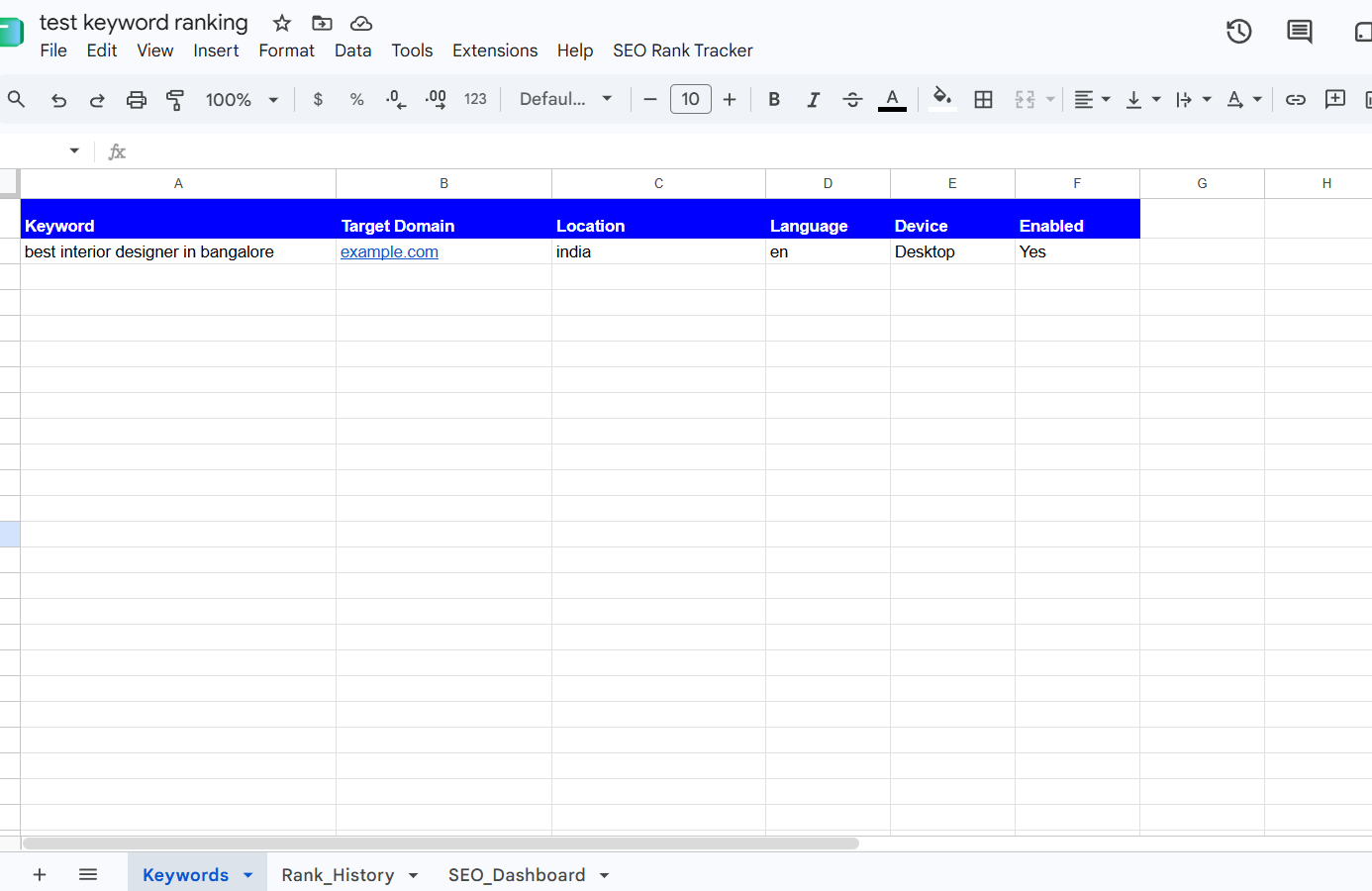
First, create a new Google Sheet to store your keywords and ranking data.
Rename the spreadsheet to something descriptive, such as SEO Keyword Rank Tracker.
Create three sheets:
Keywords
Rank_History
SEO_Dashboard
Each sheet serves a different purpose.
Sheet | Purpose |
Keywords | Stores the keywords you want to track |
Rank_History | Records every ranking check |
SEO_Dashboard | Displays the latest rankings and performance metrics |
Keeping the keyword list, historical records, and dashboard separate makes the tracker easier to maintain.
Step 2: Prepare the Keywords Sheet
Open the Keywords sheet and add the following headers in the first row.
Keyword | Target Domain | Location | Language | Device | Enabled |
Your keyword | india | en | desktop | Yes |
These are example entries. Replace them with your actual target keywords.
Understanding the columns:
Keyword: The search query you want to monitor.
Target Domain: The website whose ranking you want to measure.
Location Code: An optional field for organising your keyword list. The basic script in this guide uses its configured search location instead of reading this column.
Language: The preferred search language.
Device: The device category you want to track. The example configuration is intended for desktop tracking.
Enabled: Set this to Yes to include the keyword in the next tracking run. Set it to No to skip it.
You can add hundreds of keywords, subject to your API plan, execution limits, and the time required to process them.
Step 3: Get a Serper API Key
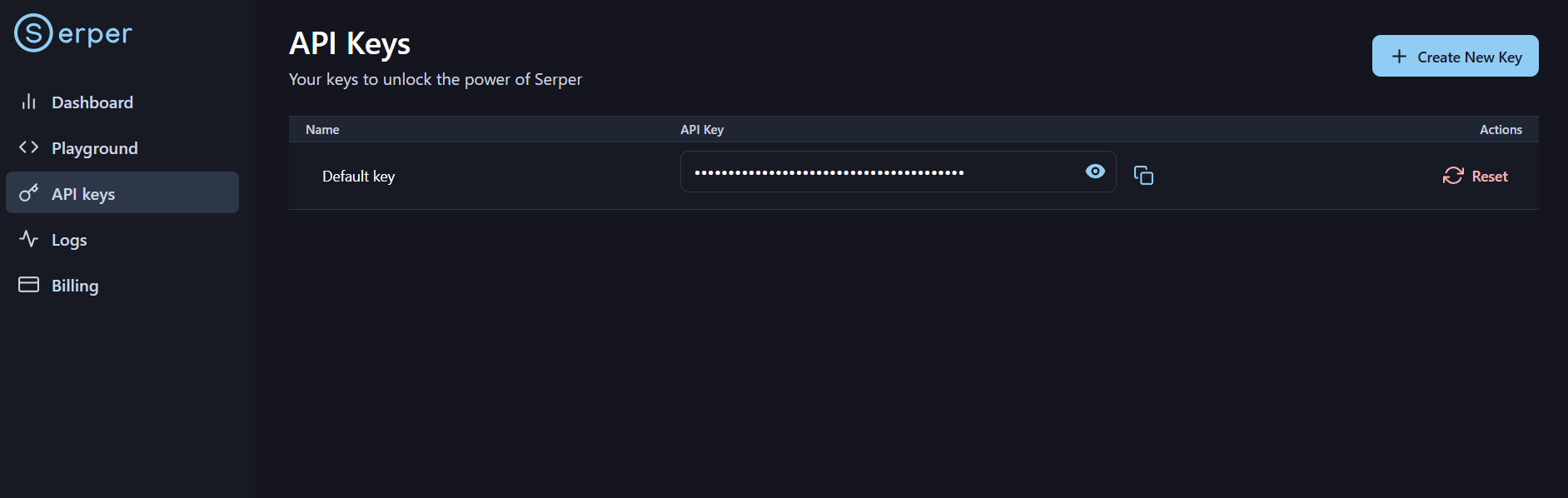
Next, create an API key that allows Google Apps Script to request search results.
Visit Serper.
Create an account or sign in.
Open the API dashboard.
Locate your API key.
Copy the key and keep it secure.
go to your google app script settings and scroll down
there you find Script Properties section
click add script property
in property Type " SERPER_API_KEY"
in value column paste the API key you get from Serper
Important*: API pricing, quotas, and the number of included searches can vary by plan. Check your current account limits before running a large keyword list.*
as of now https://serper.dev/ offers free 2500 credits, so that you can search keyword postions approximately 2500 times
Step 4: Open Google Apps Script
Now connect your Google Sheet to Google Apps Script.
Open your keyword tracker spreadsheet.
Click Extensions in the top menu.
Select Apps Script.
A new browser tab will open with the Apps Script editor.
Rename the project to SEO Keyword Rank Tracker.
You will use this editor to add the script that retrieves rankings, writes historical records, and builds the dashboard.
Your script can now retrieve the API key securely using Properties Service rather than hardcoding it into the source code.
The script accesses it with:
const apiKey = PropertiesService
.getScriptProperties()
.getProperty("SERPER_API_KEY");
This approach makes it easier to maintain the project and reduces the risk of accidentally exposing your key in the code.
Step 6: Add the Rank Tracking Script
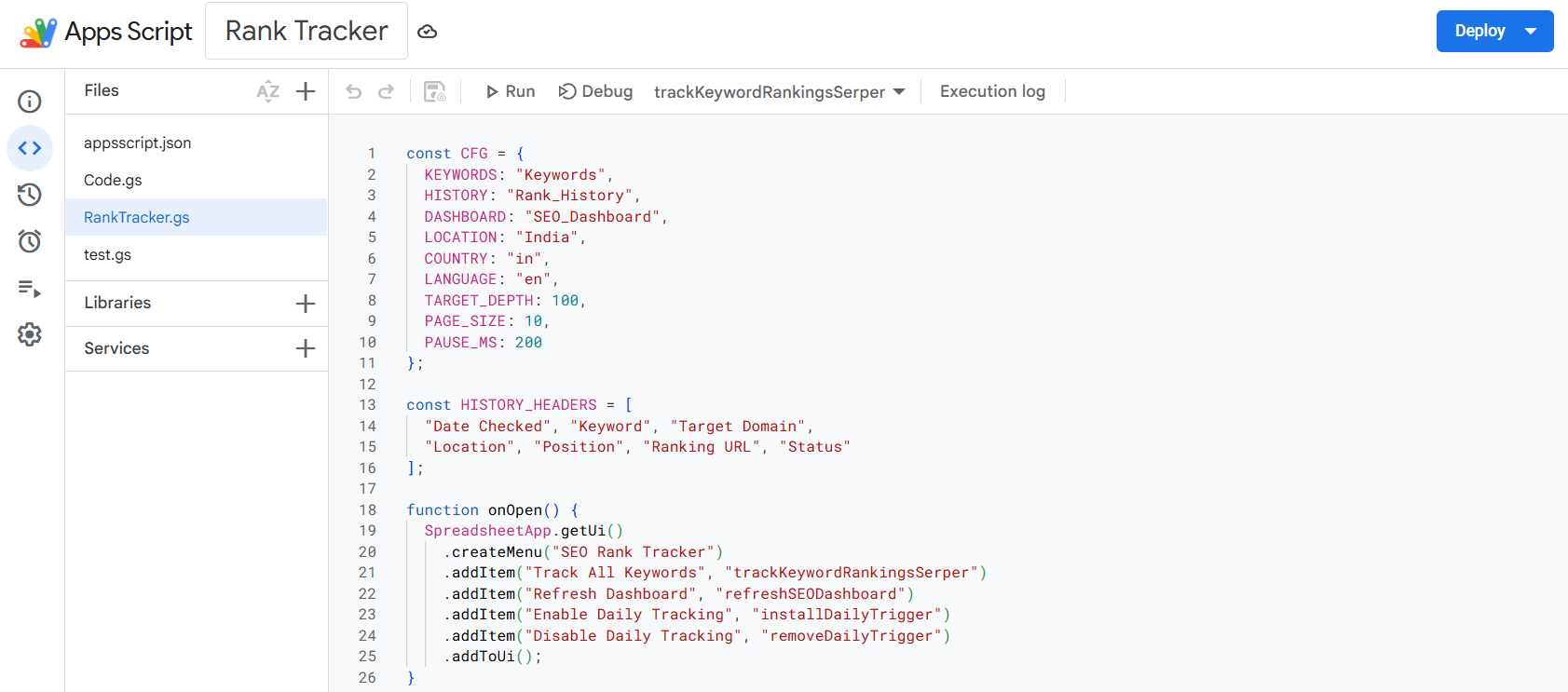
In the Apps Script editor, open Code.gs. Add the tracking code that performs the following tasks:
Reads enabled keywords from the Keywords sheet.
Sends each keyword to the Serper API.
Reads the returned organic search results.
Checks whether a result belongs to the target domain.
Identifies the ranking position and URL.
Appends the result to Rank_History. Refreshes the SEO dashboard.
The main tracking function can be named:
function trackKeywordRankingsSerper() {
// Read enabled keywords.
// Request search results from Serper.
// Find the target domain.
// Save ranking history.
// Refresh the dashboard.
}
The complete implementation also needs helper functions for domain normalisation, API requests, history management, dashboard calculations, and scheduling.
Click Here to get the full script for the keyword ranking automation
How does the rank detection work?
Suppose you want to track the keyword "interior designer in bangalore" for example.com website
The API returns organic search results containing URLs from different websites. The script checks each result's hostname against the target domain.
If a matching URL is found, the script records its position and the URL.
For example, a hypothetical result might look like this:
Keyword | Position | Ranking URL |
interior designer in bangalore | 3 |
The ranking position can then be stored in the history sheet and used in the dashboard. The example above illustrates the expected output; it is not a claim about the website's current ranking.
Step 7: Create the Rank_History Sheet
The Rank_History sheet stores every ranking check so you can compare performance over time.
Add the following headers in the first row:
Date Checked | Keyword | Target Domain | Location | Position | Ranking URL | Status |
09/10/2026 07:00:00 | interio designer in bangalore | India | 3 | Found |
This is an illustrative example of a stored record. Each time the tracker runs, it should append new records instead of overwriting previous results.
This allows you to answer questions such as:
Did a keyword improve or decline over the past week?
Which keywords entered the Top 10?
Which keywords lost their previous rankings?
Has Google started ranking a different URL for the same keyword?
Which keywords have not been found within the checked results?
Historical records are particularly useful when evaluating the impact of technical SEO fixes, content updates, internal linking improvements, and website migrations.
Why should you retain every check?
A current ranking report only shows where a keyword ranks now. Historical records show how that ranking has changed.
For example, if a keyword moves from position 18 to position 11, you can measure the improvement and investigate what changed during that period.
Step 8: Build the SEO Dashboard
The next step is to turn your historical data into an easy-to-read report.
The SEO_Dashboard sheet should summarise the latest available result for each keyword and show the most important ranking metrics.
Recommended metrics include:
Metric | What it tells you |
Keywords tracked | Number of keywords included in the report |
Average position | Average ranking position for keywords with a recorded ranking |
Top 3 keywords | Number of tracked keywords ranking in positions 1–3 |
Top 10 keywords | Number of tracked keywords ranking in positions 1–10 |
Improved | Keywords whose positions improved since the previous successful check |
Declined | Keywords whose positions became worse |
Missing rankings | Keywords for which no ranking was found in the checked results |
API errors | Keywords whose latest tracking attempt encountered an API error |
How is ranking movement calculated?
The basic calculation compares the previous position with the latest position.
For example:
Previous position: 15
Current position: 8
Improvement: 7 positions
The calculation is:
const movement = previousPosition - currentPosition;
A positive value indicates an improvement, while a negative value indicates a decline.
If the previous position was 8 and the current position is 15, the movement is -7, meaning the keyword declined by seven positions.
Missing rankings and API errors should be treated separately. An API error is not evidence that a keyword lost its ranking.
Why use an automated dashboard?
Instead of manually comparing spreadsheet rows, you can use the dashboard to quickly identify:
Keywords that need further optimisation.
Pages that are losing visibility.
Keywords that are approaching the Top 10.
Changes in ranking performance over time.
Missing results that require further investigation.
You can also use the stored history to create charts in Google Sheets or connect the spreadsheet to Looker Studio.
Step 9: Automate Daily Keyword Tracking
Once manual tracking works correctly, you can schedule the script to run automatically.
Google Apps Script supports time-driven triggers that execute functions on a recurring schedule.
For this tracker, the daily trigger is configured to run around 7 AM India time.
The scheduling function is:
function installDailyTrigger() {
ScriptApp.getProjectTriggers().forEach(trigger => {
if (
trigger.getHandlerFunction() ===
"trackKeywordRankingsSerper"
) {
ScriptApp.deleteTrigger(trigger);
}
});
ScriptApp.newTrigger("trackKeywordRankingsSerper")
.timeBased()
.everyDays(1)
.atHour(7)
.inTimezone("Asia/Kolkata")
.create();
}
This function removes an existing trigger for the same tracking function before creating a new one, helping avoid duplicate daily schedules.
Enable the daily trigger
Save your Apps Script project.
Run installDailyTrigger once.
Authorise the requested permissions.
Confirm that the trigger has been created in the Apps Script trigger panel.
The complete tracker can also include a custom spreadsheet menu with options to track keywords, refresh the dashboard, enable daily tracking, and disable daily tracking.
Google Apps Script may execute a scheduled trigger at a time within the selected hour rather than at an exact minute. Execution limits and API quotas still apply.
Step 10: Test the Tracker Before Scaling Up
Before enabling tracking for a large keyword list, test the workflow with a small number of keywords.
Use the following checklist:
The Keywords sheet contains the required headers.
The API key is saved in Script Properties.
The tracker retrieves organic results.
The correct target domain is identified.
The ranking URL is recorded correctly.
Each run appends new rows to Rank_History.
The dashboard updates after tracking.
Daily tracking is scheduled successfully.
API errors are recorded separately from missing rankings.
Pagination and position calculations have been verified.
Pay particular attention to pagination. Test keywords that rank on the first page and deeper pages, and compare the script's results with the API response.
If the API returns ten results on each page but the same URLs repeatedly, it may not be honouring the pagination parameter. In that case, do not assume that the script has checked the Top 100 results.
Step 11: Understand the Limitations
A Google Apps Script rank tracker can be useful for SEO monitoring, but it is not a direct replacement for every commercial rank tracking platform.
Search results can vary Google results can differ by location, device, language, personalisation, and time. Your API configuration determines the context of the results being tracked. For example, a national India search may not reflect the rankings a user sees when searching specifically from Bangalore or Kochi.
Ranking positions depend on the API response The script can only calculate accurate rankings if the API returns the correct organic results and pagination information. Verify how the API reports positions before using the data for client reporting.
API usage and quotas Every search request may consume API credits or count toward your plan's quota. A large keyword list with multiple pages per keyword can increase usage quickly. Use early stopping, avoid unnecessary repeat requests, and monitor your API account's usage.
Apps Script execution limits Google Apps Script has execution and service quotas. Tracking hundreds of keywords sequentially may take time, especially when several result pages are required for each keyword. Test your workflow with a smaller keyword set and scale it gradually.
Ranking history needs consistent tracking. Comparisons are more useful when the same keywords, target domain, location, language, device, and search configuration are used consistently. If you change the tracking configuration, document the change so that historical comparisons remain meaningful.
Conclusion
Building a keyword rank tracker with Google Apps Script and Google Sheets gives SEO professionals a flexible way to automate ranking checks without maintaining a separate database or manually updating reports.
By combining a search results API with Google Sheets, you can track keyword positions, save historical records, schedule daily checks, and monitor performance through a dashboard.
The most important steps are to validate the API response, preserve historical records, handle errors correctly, and avoid unnecessary API requests.
Once the basic tracker works reliably, you can extend it with location-specific tracking, ranking trend charts, email reports, and more advanced SEO analysis.
A simple automation project can become a useful part of your regular SEO workflow when it is tested carefully and maintained consistently.