
How to Avoid Organic Traffic Drop After a Website Redesign
Your Partner in Search Engine Success.
A website redesign can keep its Google traffic if you plan the SEO side before the new design goes live. Most organic traffic drops after a redesign come from a few fixable mistakes, such as missing redirects, cut content and pages left blocked from Google. This guide covers what to record first, what to test, what to do on launch day and how to read the data afterwards.
Why organic traffic drops after a redesign
Google ranks individual pages, not your website as a whole. When a redesign changes what a page says, where it lives or how it is linked, Google has to process that page again. If the new version gives Google less to work with, rankings fall.
These are the usual causes:
Old URLs with no redirect. Visitors and Googlebot land on a 404 page, and the ranking that page earned is lost.
Content cut during the design. Designers often shorten text to make pages look clean, and the paragraphs that answered search queries go with it.
Changed titles and headings. A page that ranked for "home loan EMI calculator" may lose those words from its title and H1.
Staging settings left on. A "noindex" tag or a robots.txt block from the test site goes live by mistake.
Text Google can't see, because it loads only after a click or a script.
Slower pages, often from heavy sliders and large images.
Broken tracking. Sometimes traffic did not drop at all. The GA4 tag was simply missing from the new templates.
How much of a dip is normal
Google's site move guide says rankings can go up and down while it recrawls a changed site. For a medium-sized website, Google says it can take a few weeks or more before new URLs fully replace old ones, and longer for large sites.
So a small dip for two or three weeks is expected. A sharp fall across the whole site in the first few days is not. That usually points to a technical problem you can find and fix.
Before you start: save a full baseline
Before any design work begins, save these:
Search Console Performance data by page and by query for the last 16 months (the most Search Console keeps).
GA4 organic sessions and conversions for each landing page.
A full crawl of the old site using a tool such as Screaming Frog, with every URL, title, meta description, H1, word count, canonical tag and status code.
Pages with links from other websites. Search Console's Links report is a free place to start.
Current positions for your 20 to 50 most important keywords.
After launch, you will compare the new site against this crawl line by line.
Decide what happens to every old URL
This is where most redesigns go wrong. Make a spreadsheet with every old URL and give each one a clear decision.
| Decision | When to use it | What to set up |
|---|---|---|
| Keep the same URL | The page stays at the same address | Nothing. This is the safest option. |
| Move to a new URL | Same content, new address | A 301 redirect from old to new |
| Merge | Two or more thin pages become one stronger page | 301 redirects from each old URL to the merged page |
| Remove | The page has no traffic, no links and no use | Let it return a 404 or 410 |
Sort the list by organic clicks and backlinks, and start at the top. A page with good traffic should almost never be removed without a close match to redirect to.
Google's documentation adds two rules. Don't send many old URLs to the homepage, because Google may treat that as a "soft 404" (a page it thinks is missing even though it loads). And point each redirect straight to the final page, with no chains.
Keep your URLs the same wherever you can. A new design does not need new URLs, and every URL you change adds risk.
Protect what Google already likes on each page
For every page that brings traffic, compare the old and new versions side by side. Check that the new page still has:
The main text that answered the searcher's question, not a cut-down version
The same or a better title tag and H1, with the main keyword in place
The FAQs and tables that may have won featured snippets
Internal links from the menu and related pages (a page moved from the main menu to three clicks deep may slip)
Image alt text and structured data (schema markup that tells Google what the page is about)
If the new design loads content with JavaScript, test a few pages with the live test in Search Console's URL Inspection tool to see what Google actually reads.
Change one thing at a time
Google advises against changing everything at once. If you plan a new domain, a new CMS (content management system, such as WordPress or Shopify) and a new design, do them as separate steps.
The reason is practical. If traffic falls after five changes on one day, you can't tell which change caused it. Launching in a slower month also means fewer customers notice any short-term problem.
Test everything on staging
Your staging site is the test copy where developers build the new design.
Protect it with a password, not only a robots.txt rule, so Google never indexes it.
Crawl it and compare it with your baseline crawl. Look for missing pages, empty titles and broken links.
Test your redirect list on staging if your setup allows it.
Check page speed with PageSpeed Insights and try the main templates on a real phone.
Launch day checklist
Do these on the day the new site goes live:
Remove the staging password, any "noindex" tags and any site-wide robots.txt block.
Turn on all 301 redirects.
Run your full old URL list through a crawler. Each one should return a 301 to the right page, then a 200 status.
Check that every page has a self-referencing canonical tag (the tag that tells Google which version of a page is the main one).
If you have language or country versions, check that the hreflang tags use the new URLs.
Confirm the GA4 tag and Search Console verification still work.
Submit the new XML sitemap in Search Console.
If the domain changed, use the Change of Address tool in Search Console.
Update links you control, like your Google Business Profile, social profiles and ad campaigns.
Google advises keeping redirects for at least one year. Leave them longer if you can, since people and other websites keep using old links.
What to watch in the first eight weeks
| When | What to check |
|---|---|
| Day 1 to 3 | GA4 real-time traffic, 404 errors, a sample of URLs in URL Inspection |
| Week 1 | New "Not found" or "Excluded by noindex" errors in the Search Console Pages report |
| Weeks 2 to 4 | Clicks and impressions for your top 50 pages against the baseline |
| Weeks 4 to 8 | Rankings for your saved keywords and conversions by landing page |
Compare pages, not just the site total. A total can look fine while your best service pages quietly drop.
Get Pre migration and post migration checklist for free
If traffic drops anyway, read the pattern
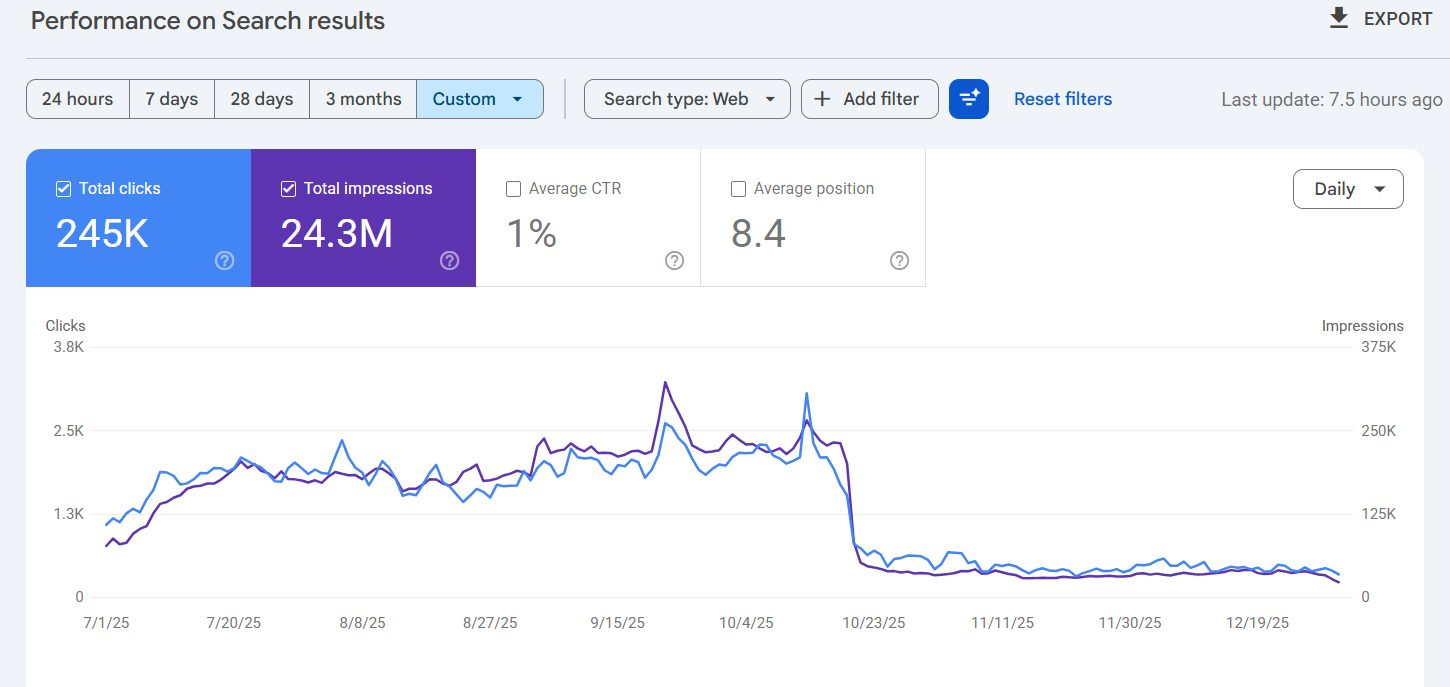
The shape of the drop tells you where to look.
A sudden drop across the whole site usually means a noindex tag, a robots.txt block or failed redirects.
A drop in one section points to that section's template, where content or internal links may have changed.
A slow decline over weeks usually comes from missing text, weaker titles or lost internal links on the pages losing clicks.
If direct and referral traffic fell too, check your tracking before anything else.
Also check Google's Search Status Dashboard. If a core update rolled out the same week, it may explain part of the change.
Your next step
If a redesign is coming, build the baseline and the URL decision sheet this week, before page layouts are final. Those two files prevent most of the problems in this guide and give you a clear record to check against after launch.